Understanding FPS and Bottlenecks
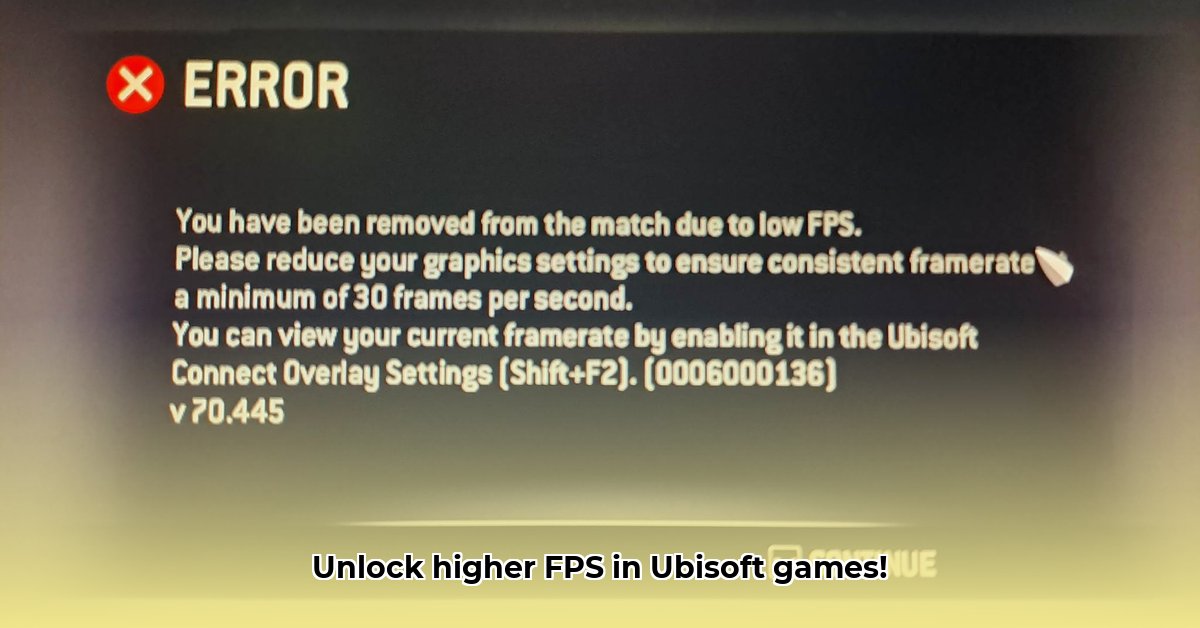
Frames per second (FPS) represents the number of images your computer displays per second. Higher FPS means smoother gameplay. However, performance bottlenecks—like a traffic jam on a highway—can restrict your FPS. These bottlenecks can stem from your CPU (the processor), GPU (graphics card), or RAM (memory). Identifying the bottleneck is crucial for optimization.
In-game FPS counters provide a basic overview, but detailed tools like MSI Afterburner (a popular performance monitoring utility) offer more precise insights into CPU and GPU utilization. High CPU usage (above 90%) with low GPU usage suggests a CPU bottleneck. The reverse indicates a GPU bottleneck. Constantly full video RAM (VRAM) implies overly demanding graphics settings. Understanding these indicators will guide your optimization efforts. Don't worry if these terms seem technical; we will explain them further as we go.
Monitoring Your FPS: Tools and Techniques
Accurately monitoring your FPS is essential for optimization. Several methods exist:
In-Game FPS Counters: Many Ubisoft games include built-in FPS displays, usually accessible within the video or display settings menu.
Ubisoft Connect Overlay: Check if your Ubisoft Connect client offers an FPS overlay for supported games.
Third-Party Monitoring Tools: MSI Afterburner and the Xbox Game Bar provide real-time FPS data, alongside CPU and GPU usage, offering comprehensive performance analysis. These tools are invaluable for pinpointing performance bottlenecks.
Optimizing In-Game Settings: Easy Wins
Adjusting in-game graphics settings offers significant, easily achieved FPS improvements. Prioritize these settings:
Resolution: Lowering the resolution (e.g., from 1440p to 1080p) significantly impacts performance. It's often the quickest and most effective initial adjustment.
Texture Quality: Reducing texture quality diminishes the detail of surfaces, easing the GPU's load.
Shadows: High-quality shadows are resource-intensive. Lowering shadow quality provides substantial FPS gains.
Anti-Aliasing (AA): AA smooths jagged edges, but it's computationally expensive. Disabling or lowering AA often has minimal visual impact while significantly boosting FPS.
Volumetric Effects: Effects like fog and smoke are visually appealing but taxing. Reducing their quality can greatly improve performance.
Advanced Optimization Techniques: Fine-Tuning Performance
After optimizing in-game settings, consider these advanced techniques:
Driver Updates: Outdated graphics drivers (for NVIDIA or AMD cards) are a frequent cause of performance issues. Regularly check for and install the latest drivers for optimal performance.
Background Process Management: Close unnecessary background applications (web browsers, music players, etc.) to free up system resources. This can lead to considerably improved frame rates.
Overclocking (Use With Extreme Caution!): Overclocking increases CPU or GPU clock speeds, potentially boosting FPS. However, it risks hardware damage if done incorrectly. Proceed only if you're experienced and understand the risks involved. Do not attempt overclocking without extensive research and proper monitoring tools.
Hardware Upgrades: A Last Resort
If software optimizations prove insufficient, consider hardware upgrades. A new graphics card (GPU) often delivers the most noticeable improvement in gaming performance. However, a CPU upgrade may be necessary if you've identified a CPU bottleneck. RAM upgrades can also help, especially if your system frequently runs low on memory. Before upgrading, research various hardware options and compatibility considerations.
Key Takeaways: A Summary of Optimization Strategies
- Identify Bottlenecks: Use monitoring tools to determine whether your CPU or GPU is limiting performance.
- Prioritize In-Game Settings: Start with simple graphical settings adjustments for quick FPS improvements.
- Manage Background Processes: Closing unnecessary apps frees up system resources for gaming.
- Consider Advanced Techniques: Driver updates and (cautious) overclocking can further enhance performance.
- Hardware Upgrades: As a last resort, consider upgrading key components (GPU, CPU, RAM) for substantial performance boosts.
Remember, the optimal approach depends on your system's specifications and your comfort level with advanced techniques. Start with the simplest methods before exploring more advanced options, ensuring a smooth and enjoyable gaming experience.
⭐⭐⭐⭐☆ (4.8)
Download via Link 1
Download via Link 2
Last updated: Saturday, May 03, 2025